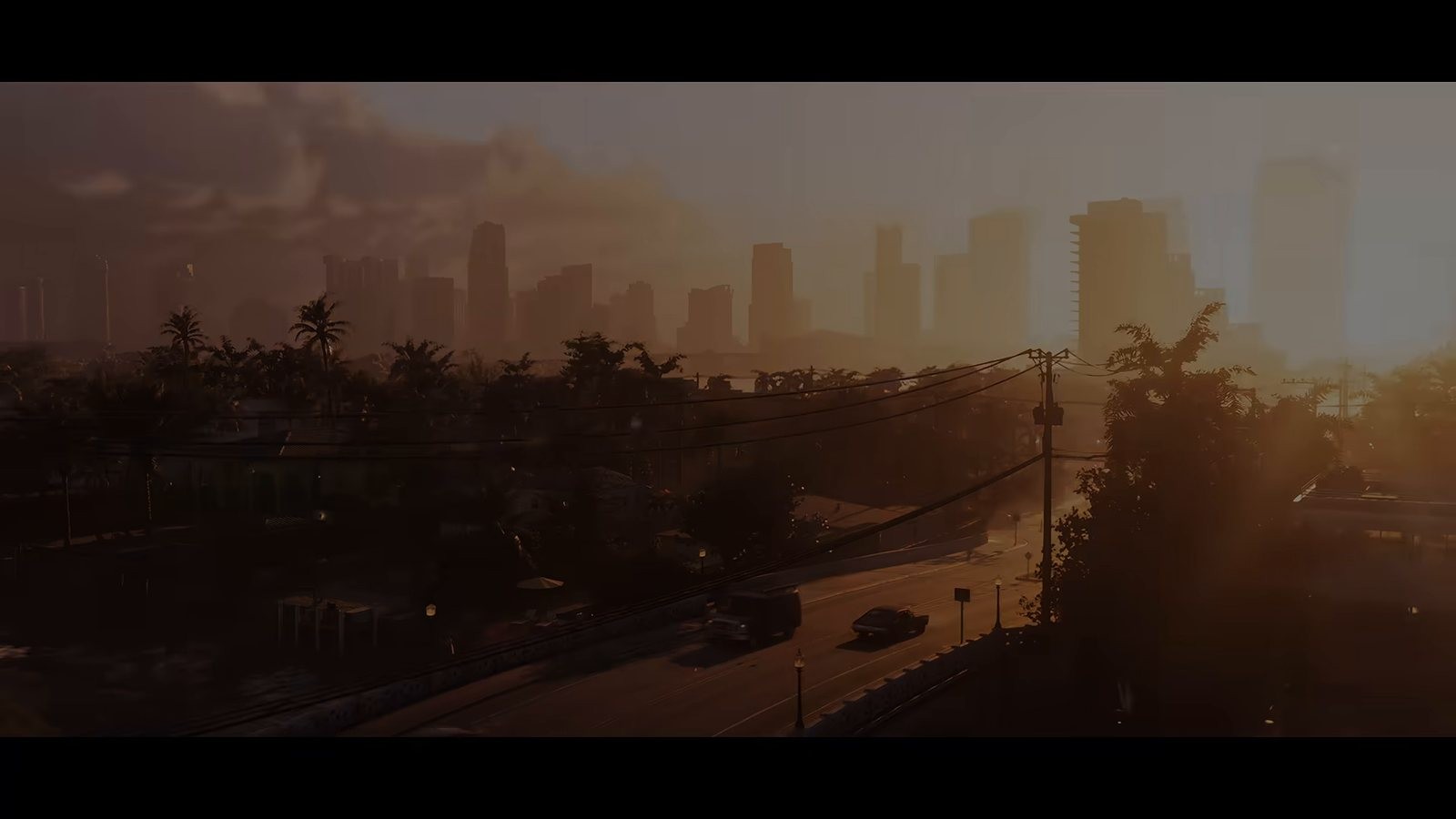
Guides
GTA 6 Photo Mode and Capture on PS5 and Xbox Series X
What is confirmed. Every bit of console capture behaviour here comes from PlayStation and Xbox support documentation. Whether this game has an in game photo mode is something we have looked for and not found, and Rockstar has not said.
Does GTA 6 have a photo mode? Not that I have found. I went through the pause menu, the phone and the settings in my first couple of hours and there is no photo mode option, and Rockstar has not announced one. If that changes, this page changes the same day. What both launch consoles do have is capable capture built into the controller, and setting it up before you play is the difference between keeping your best moments and losing them.
Key facts
- Confirmed: the game runs on PlayStation 5 and Xbox Series X|S only, per Rockstar Support, so console capture is the capture route for everyone.
- Confirmed: the PlayStation 5 Create button opens a menu with Take Screenshot, Start New Recording and Save Recent Gameplay, per PlayStation support.
- Confirmed: PlayStation 5 records continuously in the background, and Save Recent Gameplay keeps anywhere from the last fifteen seconds up to an hour.
- Confirmed: on PlayStation 5 a double tap of Create saves the recent clip and holding it for about three seconds takes a screenshot, with the behaviour switchable between Standard, Easy Screenshots and Easy Video Clips.
- Confirmed: the Xbox Share button sits between View and Menu on the Xbox Wireless Controller and captures both screenshots and clips, per Xbox support.
- An in game photo mode is the one thing on this list nobody has shown. We have looked, and we have seen nobody else show one either.
Set up PlayStation 5 capture first
The Create button is the one with the three lines to the left of the touchpad. A short press opens the create menu, which gives you three options. Take Screenshot grabs the current frame. Start New Recording begins a manual recording you stop from the same menu, with up to an hour available. Save Recent Gameplay reaches backwards into the rolling buffer the console keeps while you play.
Save Recent Gameplay is the important one, because the best moments in an open world game are never the ones you saw coming. The console has already recorded it. You are just choosing how far back to go, and in my first session that saved me three times.
PlayStation support also documents the shortcut behaviour, and it is worth knowing before you need it. Double tap Create to save the recent clip without opening the menu, or hold it for roughly three seconds to take a screenshot. If those defaults do not suit you, the capture settings offer Standard, Easy Screenshots and Easy Video Clips, which remap what a single press does.
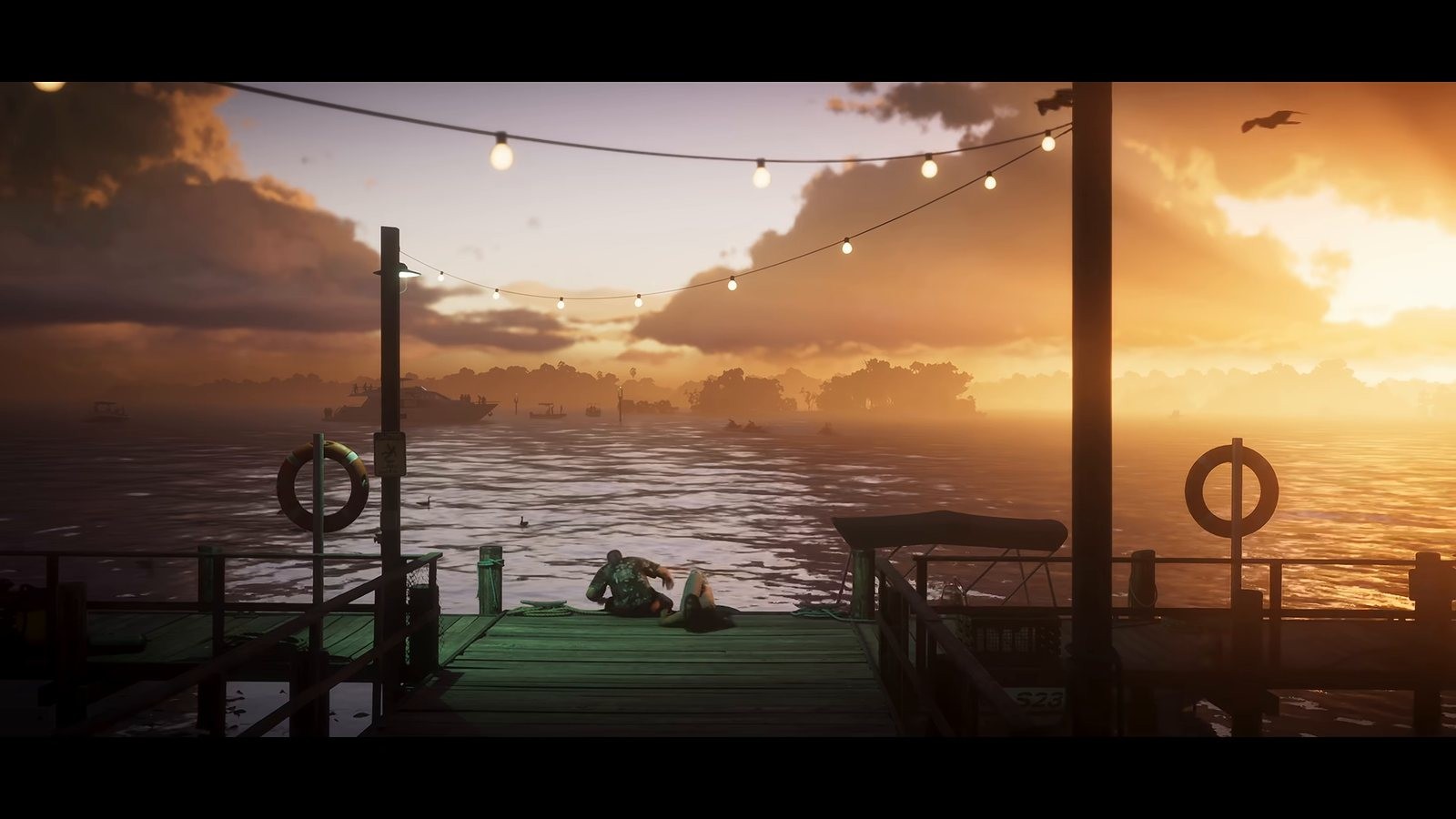
Xbox Series X and Series S capture
On Xbox, the Share button is the small button between View and Menu on the Xbox Wireless Controller supplied with the Series X and Series S. Xbox support describes it as the quick route to both screenshots and game clips, with everything you capture landing in your captures where it can be trimmed, uploaded to the Xbox network and reached later from the console, the mobile app or a Windows device.
The upload path is the part worth using deliberately. Captures that reach the network are on your phone within a minute or two, which is far faster than any cable, and it is how most people actually get a clip off a console and into an edit. It is the main reason I keep a Series X on the shelf next to the PS5.
The settings worth changing before your first session
Three choices make a visible difference. The first is clip length. If your console is set to a short default buffer, raise it, because fifteen seconds is rarely long enough for a chase to resolve. The second is resolution, where the highest available option costs storage but is the only version worth editing later. The third is whether microphone audio is included, which matters if anything you capture might be published.
The fourth consideration is storage. Captures pile up quickly at high resolution, and a console already near full because of a 212 GB install will quietly start failing to save them. Clear the gallery between sessions or move captures to external storage. Mine filled up before lunch.
Composing without a GTA 6 photo mode
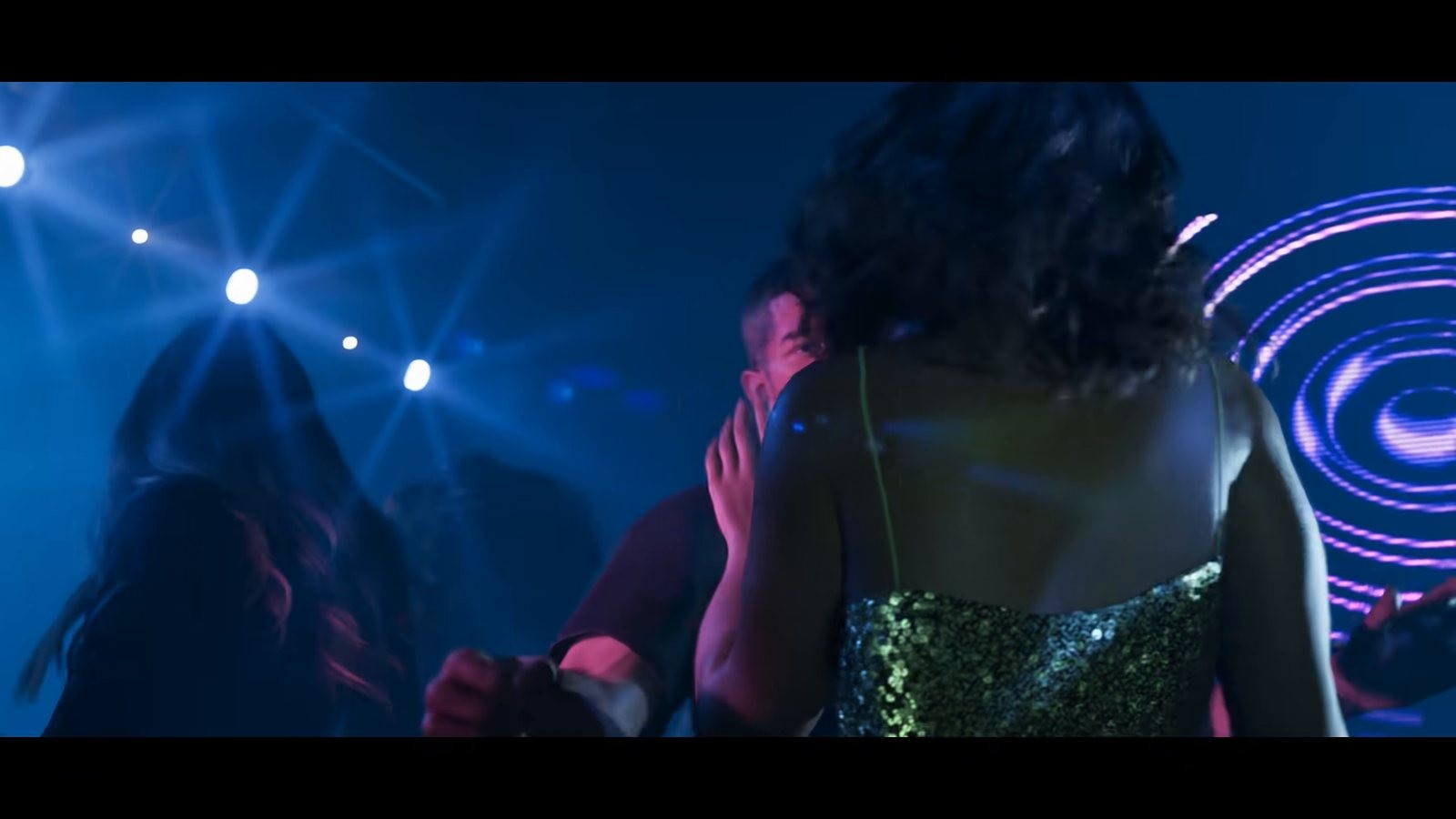
Until a photo mode turns up, composition means driving to the shot rather than freezing it. Three habits help. Use the in game camera angles the game gives you rather than the default chase view. Drive to high ground or a waterfront at the hour the light is good, which in this game is worth going out of your way for. Then hold the frame still for a second longer than feels natural, because a steady frame crops well and a moving one does not.
Screenshots taken that way are genuinely usable. They are not a replacement for a free camera, and if Rockstar adds one I will rewrite this section rather than bolt a note on the end.
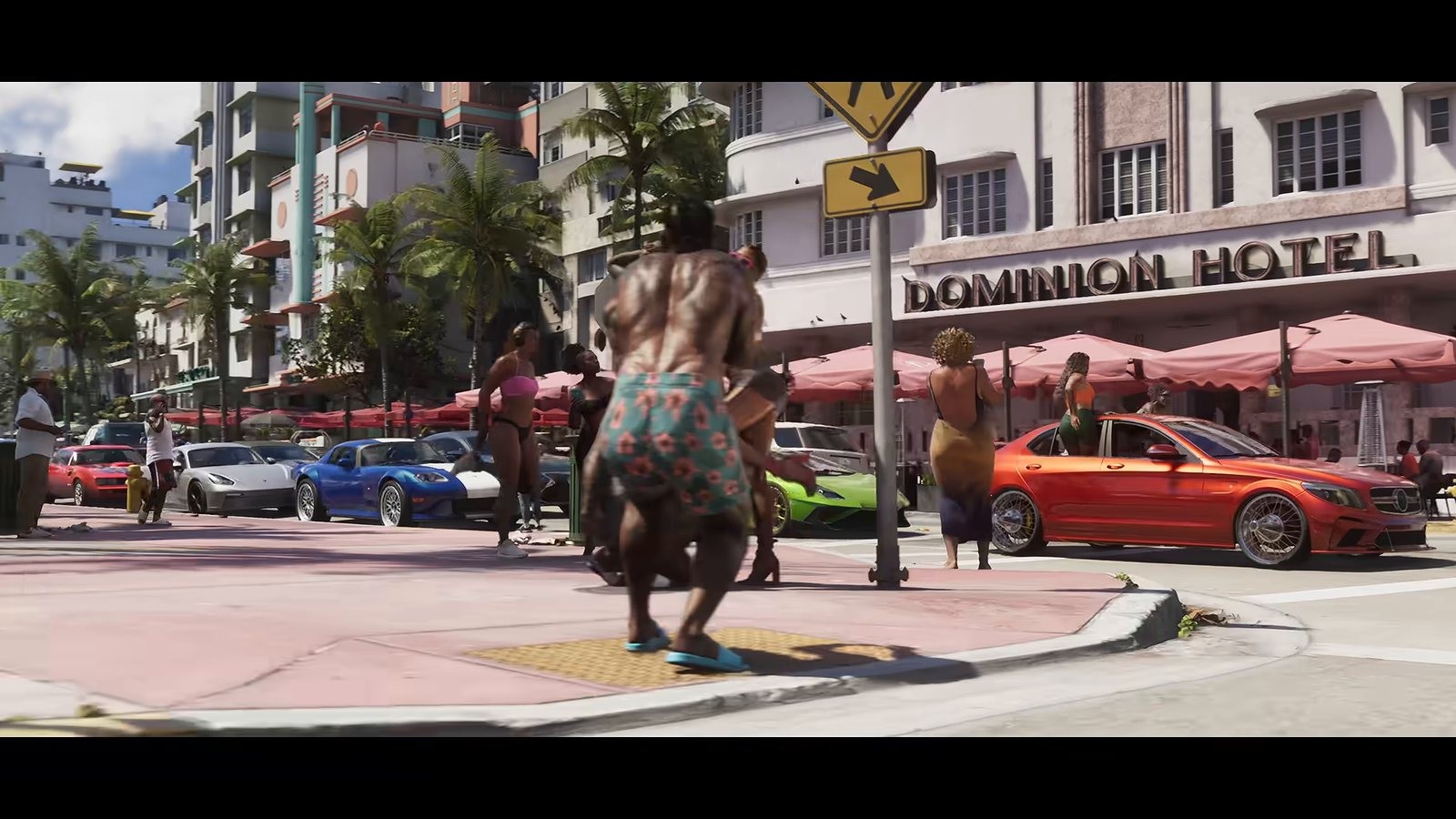
If you are capturing with an audience in mind rather than a personal archive, our guide to the best moments to clip this week covers which moment types travel. For locations worth shooting, the interactive map and the mission pages are both updated daily from launch footage.
Frequently Asked Questions
Does GTA 6 have a photo mode?
Not that we have found. I checked the pause menu, the phone and the settings early on and there is no photo mode option, and Rockstar has not announced one. Console capture works regardless on both launch platforms.
How do I save a moment I did not record?
On PlayStation 5, use Save Recent Gameplay from the Create menu. The console records continuously in the background and you can keep from the last fifteen seconds up to an hour.
What does holding the Create button do?
Holding it for about three seconds takes a screenshot under the standard scheme, while a double tap saves the recent clip. Both can be changed in the capture settings.
Where do Xbox captures go?
They are saved to your captures and can be uploaded to the Xbox network, where they are reachable from the console, the mobile app and Windows devices.
Not affiliated with, endorsed by or sponsored by Rockstar Games or Take-Two Interactive.
Sources
- playstation.comhttps://www.playstation.com/en-us/support/games/capture-ps5-gameplay-screenshots/
- playstation.comhttps://www.playstation.com/en-us/support/games/ps5-media-gallery-view-screenshots/
- playstation.comhttps://www.playstation.com/en-us/support/games/ps5-edit-share-screenshots-clips/
- support.xbox.comhttps://support.xbox.com/en-US/help/friends-social-activity/share-socialize/capture-game-clips-and-screenshots
- support.xbox.comhttps://support.xbox.com/en-US/help/hardware-network/accessories/controller-share-button
- support.rockstargames.comhttps://support.rockstargames.com/articles/4QfG4FmZCf5W1gS8jy4UVT/grand-theft-auto-vi-platform-editions-and-versions
Related posts
 ClipsLaunch
GTA 6 Best Moments to Clip in Launch Week for Creators
The GTA 6 best moments to clip in launch week, why reaction and failure beat highlight reels, and how to capture, cut and caption them without wasting a day.5 min read GuidesLaunch
GTA 6 Cheats and Codes: I Tried the Old Ones, Nothing
There are no GTA 6 cheats yet. I tried the old Grand Theft Auto V button combinations and phone numbers, got nothing, and here is how to spot a fake list.5 min read GuidesLaunch
GTA 6 Beginner Tips: Your First 10 Hours Without Spoilers
GTA 6 beginner tips for your first 10 hours that do not spoil anything: console settings, capture setup, storage, saving habits, pacing and avoiding leaks.5 min read